You can share files and folders with anyone, including people outside UVU. Sharing just requires you to identify who you are sharing with, either by name, email address, or Microsoft Teams group.
Contact the Service Desk
Submit a Service Request
Call Us (801) 863-8888
Phone Support Hours: Monday-Friday 7:00am - 6:00pm
Sharing Internally
You can share with anyone outside UVU by just entering their email address. They will receive an email with a link and will be asked to verify their identity with a one-time passcode.
Open the sharing dialog for any file or folder in OneDrive or SharePoint by right-clicking
and selecting Share or clicking the Share button at the top of the page.
In the recipient field, you can:
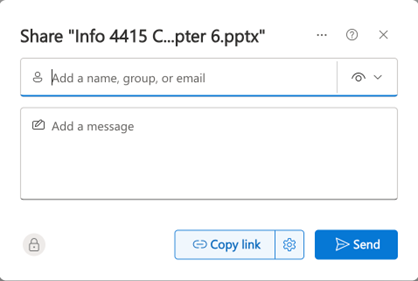
Once you have selected the recipient, choose their permission level (described below) and click Send or copy link if you want to send them a Teams message or email with it.
Most internal groups already have Teams/SharePoint teams. This simplifies sharing and takes the hassle out of picking individuals from a list.
If you need to share something with a large group, such as a class section or a department team, you can share directly with a Microsoft Teams group instead of adding people one at a time.
In the sharing dialog, type the name of the Teams team. Matching teams will appear in the dropdown. Select the one you want, choose permissions, and click Send. Everyone who is a member of that team will have access.
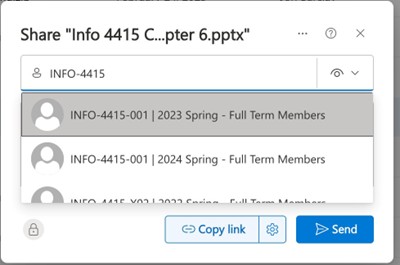
Tip: If you teach a course and want to share materials with your class, the easiest approach is to have a Teams team for that course. See the section below on creating a team from Canvas.
Follow the instructions for sharing with individuals, then do it again for the individual
Sharing with Everyone
Public (Organization-wide)
Anonymous (Anyone with the link)
Sharing Permissions
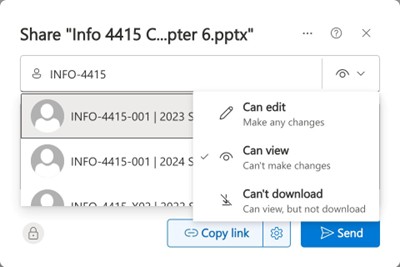
When you share, you can control what recipients are allowed to do with the file or folder. Click the permission dropdown (the eye icon next to the recipient field) to choose:
|
Permission |
What it allows |
|---|---|
|
Can edit |
The recipient can view, edit, and save changes to the file. |
|
Can view |
The recipient can open and read the file but cannot make changes. They can still download a copy. |
|
Can't download |
The recipient can view the file in the browser but cannot save or download a copy. Useful when sharing sensitive content you want to restrict distribution of. |
Request an Exception to Org-wide Sharing Restrictions
You can share individual files or entire folders. Both work the same way, but there are important differences to keep in mind.
Sharing a file is straightforward. Only that file is accessible to the people you share it with.
Sharing a folder gives recipients access to everything currently in that folder, and any files you add to that folder in the future. This is convenient but can lead to unintended access if you later move files into that folder without remembering it is shared.
Be careful when sharing folders. It is easy to forget a folder is shared and accidentally
expose files you add later.
If you share a folder, consider setting an expiration date on the share, or periodically
reviewing who has access.

Extreme care should be taken in sharing files with others, both internal and external to UVU. Use SharePoint/Teams for internal sharing, by moving the file into the appropriate team and folder structure.
Users and departments should review file/folder access and sharing regularly (at least semi-annually) to ensure that only those who should have access, do.
The default expiration period for sharing links is 180 days. When possible, use a shorter expiration to reduce risk.
Sharing with “People in Utah Valley University” includes every student and employee at UVU. Be careful! With new AI tools and search engines built-in to Microsoft products, shared files can now be discovered, suggested, and displayed to users who you may not wish to have access.
Sharing with "Anyone" gives anyone, anywhere, part of UVU or not, access to your files. Be careful!
Sharing permissions should always be customized to ensure only those who should have access, do.
Be especially careful with sharing anything containing student academic or other personal sensitive information.
When someone shares a file with you, the link they send is tied to your identity. If you forward that email to a colleague, they will likely get an access denied error. The original owner needs to add that person directly.
How do I create a Microsoft Team from Canvas?
If you teach a course and want to share files with your students, the most efficient way is to have a Teams team that automatically includes your enrolled students. You do not need to set this up manually.
In Canvas, open your course and look for the Microsoft Teams tool in the course navigation. From there you can create a class team that is linked to your Canvas course roster. The team will be populated automatically with your enrolled students and will update as students add or drop the course.
Once the team exists, you can use it in the SharePoint sharing dialog just like any other Teams group. Type the course code and the team will appear in the list.
Note: If you do not see the Microsoft Teams option in Canvas, contact the UVU Service Desk. Teams integration must be enabled for your course.
Why do external recipients need to verify their identity when accessing a shared file?
When you share with someone outside UVU using their email address, they will receive a link by email. When they click it, they will be asked to verify their identity with a one-time passcode sent to that email. This is expected behavior and not an error. They do not need a Microsoft account.
Why does my colleague get an “access denied” error when I forward them a sharing link?
When someone shares a file with you, the link they send is tied to your identity. If you forward that email to a colleague, they will likely get an access denied error. The original owner needs to add that person directly.
Why did my file’s permissions change after I moved it to a different folder?
If you move a file into a shared folder, it inherits the folder's permissions. If you move it out, it keeps its own permissions but loses the folder's. Moving files between folders can cause unexpected access changes. When in doubt, check the file's sharing settings after moving it.
Why are my old “Anyone with the link” sharing links no longer working?
Any links that were created as "Anyone with the link" before this policy change have been disabled. If you shared files using anonymous links in the past, those links are now broken. You will need to reshare those files using the new method and notify recipients.
Why can’t someone access a file right after I shared it with their group?
If you share with a Teams group that has many members, it may take a few minutes for all members to gain access. If someone reports they cannot access a file right after being added to a share, ask them to try again after a short wait.
Why can’t the person I shared a folder with browse to the parent folder?
If you share a subfolder with someone, they can access the contents of that folder but cannot browse up to the parent folder. They will need the direct link to the folder or file you shared.
Why is an external collaborator missing some editing or commenting features?
External users accessing files through a shared link may have some limitations compared to internal users, particularly around co-authoring and commenting. If an external collaborator reports missing features, they may need to sign in with a personal Microsoft account for full access.
How do I make sure a sensitive file isn’t automatically visible when I upload it?
If you are uploading a file to a folder that is already shared, that file is immediately visible to everyone who has access to the folder. Always verify a folder's sharing status before adding sensitive content to it.
How do I request an exception?
In most cases, sharing with specific people or Teams groups is the right approach. However, there may be situations where you need to share something with all UVU users at once, such as a widely-used reference document or an institution-wide resource.
If you have a legitimate need for organization-wide sharing, you can submit an exception request. Requests are reviewed and approved on a case-by-case basis.
Submit an exception request.
How long does a file sharing exception last?
Approved file sharing exceptions expire after 180 days.
What University policies can I refer to for guidance?

