Conference Room Help

 
Room not working?

Call us — we'll help right now

Fastest way to get unstuck. When you call, tell us your room number and what you see.

801-863-1111
 
Or find it yourself
Quick Start GuideNew here? How to start the roomTroubleshootingSomething isn't working — try a quick fix


Quick Start Guide


A one-page overview of how to run a meeting in this room. For step-by-step detail, see the System Start Details Guide below.
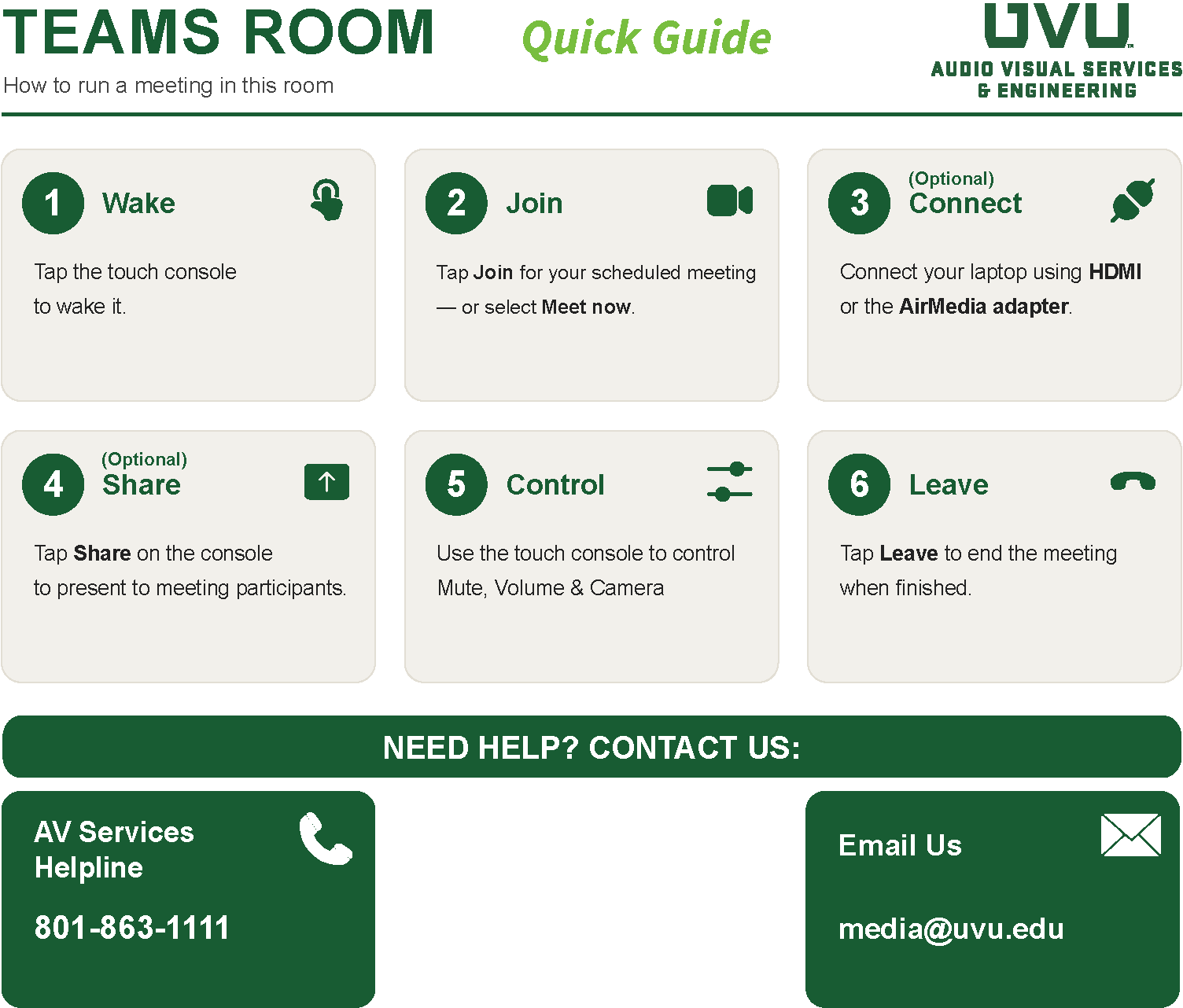
conference room quick start guide

↑  Download this quick guide (PDF) to keep or print

Features Guide


Instructions for using UVU conference rooms. Each section stands on its own — open the one you need.

1. Reserve a conference room in Outlook
When to use this: You want to reserve a conference room for a meeting.
What you need: Outlook, and the name of the room you want.

Conference rooms are booked the same way you'd invite a person. You add the room to the invite, and it accepts or declines automatically depending on whether it's already booked.

Steps
1In Outlook, create a New Meeting.
2In the To field, type the room name with a space between building and number, e.g. FL 321. Select it from the list, just like a person.
3Add your other attendees, subject, and time.
4Click Send.

Tip: The space matters. Type FL 321, not FL321, or the room won't appear.

The room added to the To field, showing as Available

The room replies automatically with an acceptance, or a decline if it's already booked. Check for that reply before assuming the room is yours.

Note: Booking the room this way is also what makes your meeting appear on the touch console inside the room, so you can join it with one tap when you arrive.
If the room declines

The room was already booked for that time. Choose another time or another room.

2. Start a meeting and present in the room
When to use this: You're in the room and want to run a Teams meeting, with or without remote attendees, and show something on the screen.
What you need: Nothing to start a meeting. To present, either the HDMI cable at the table or your laptop.
Start the meeting

If the meeting was already scheduled with this room invited:

1Tap the touch console on the table to wake it.
2Find your meeting in the list on the console.
3Tap Join.

If there is no scheduled meeting:

1Tap the touch console to wake it.
2Tap Meet now.

The room joins with its camera and microphone on.
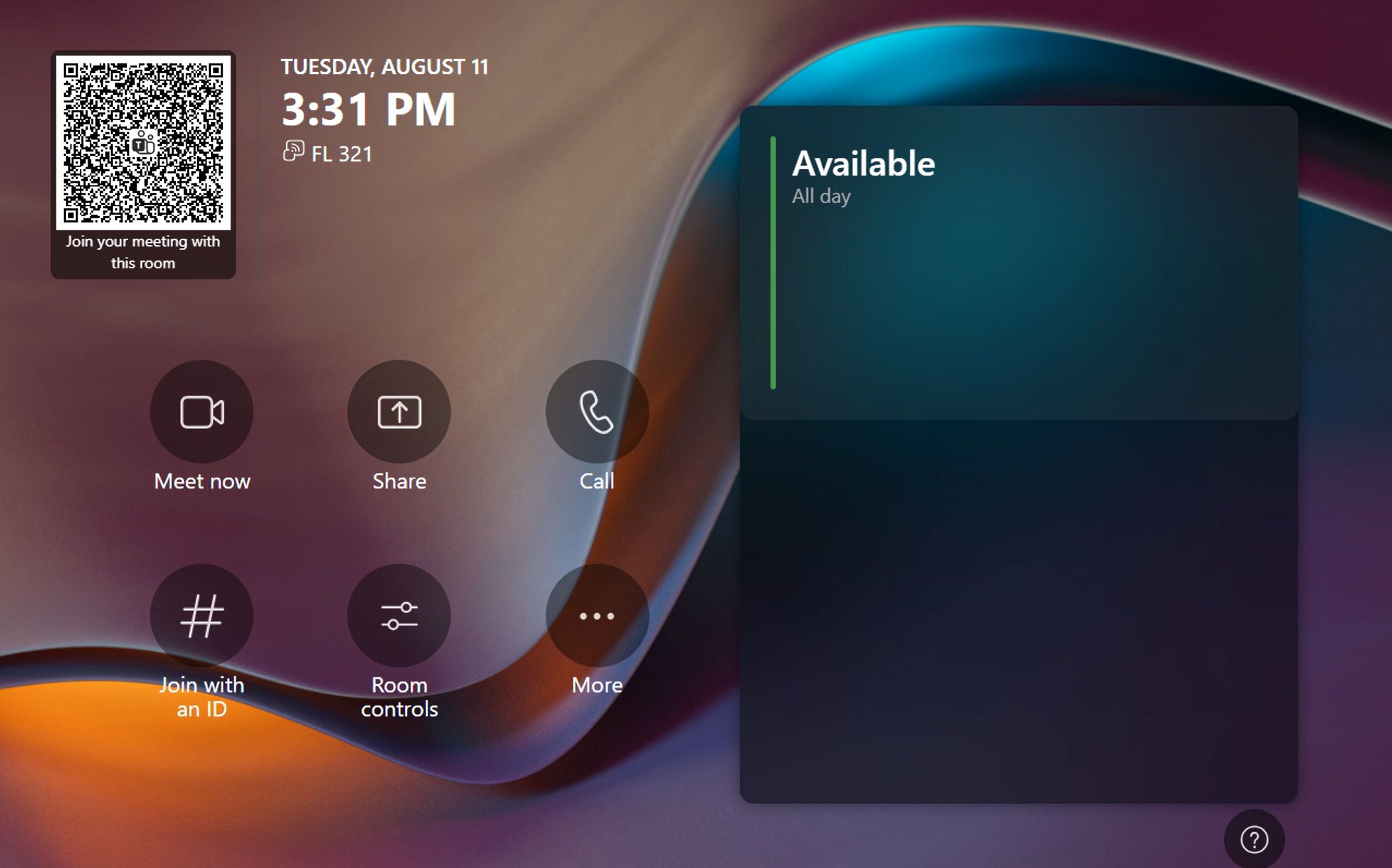
The console home screen, with Meet now
Invite people into the meeting

You can bring people in after the meeting has started.
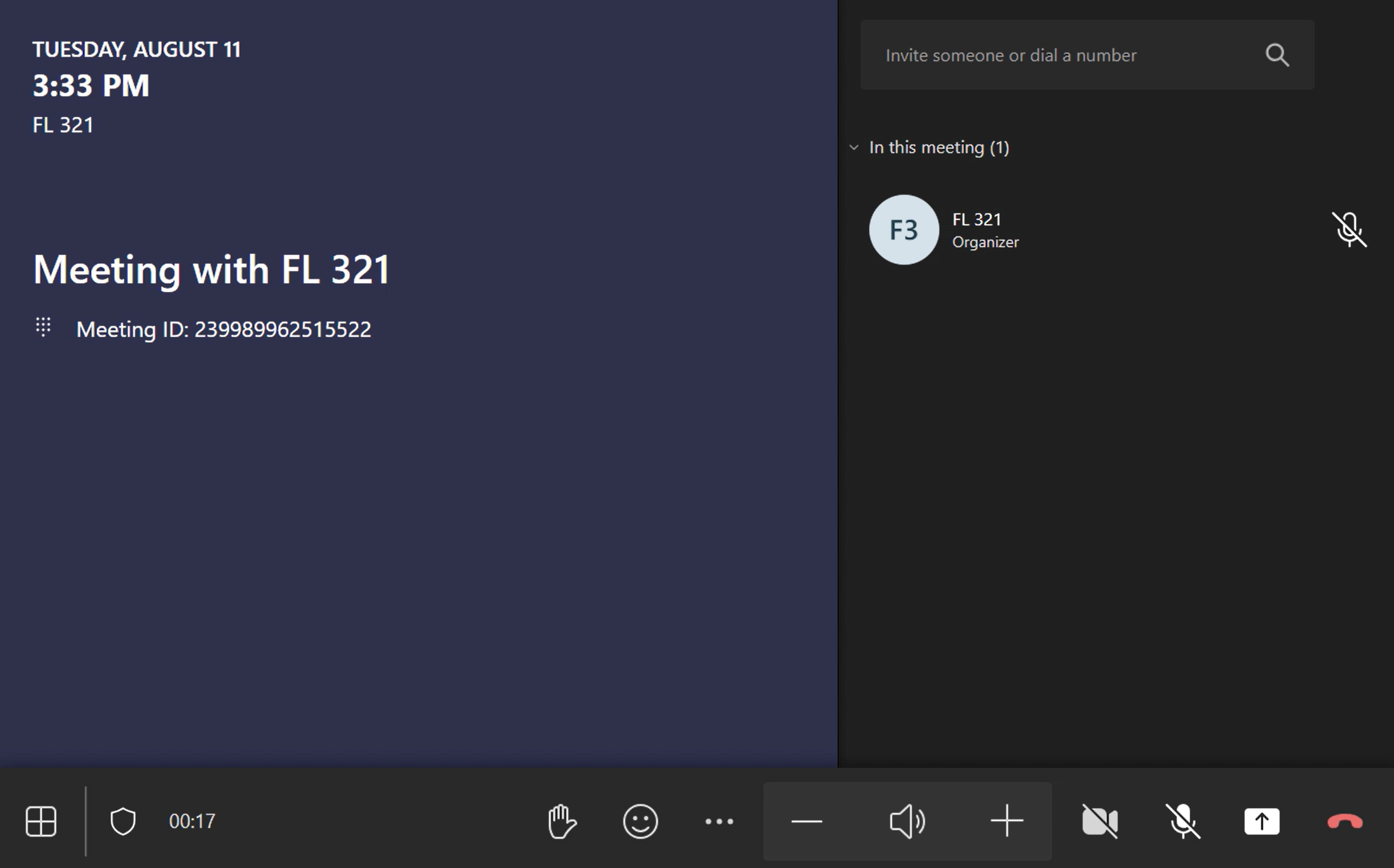
1On the console, tap Add participants.
2Type a name and select the person.
3Teams calls them into the meeting, and they can answer from wherever they are.
Inviting someone into the meeting from the console
Present in the room

There are three ways to do this.

Option A: HDMI cable
1Plug the HDMI cable at the table into your laptop.
2Your screen appears on the room display and is shared with the meeting automatically.
Option B: AirMedia dongle

Only some conference rooms have AirMedia. Your room has it if there's an AirMedia dongle on the table.
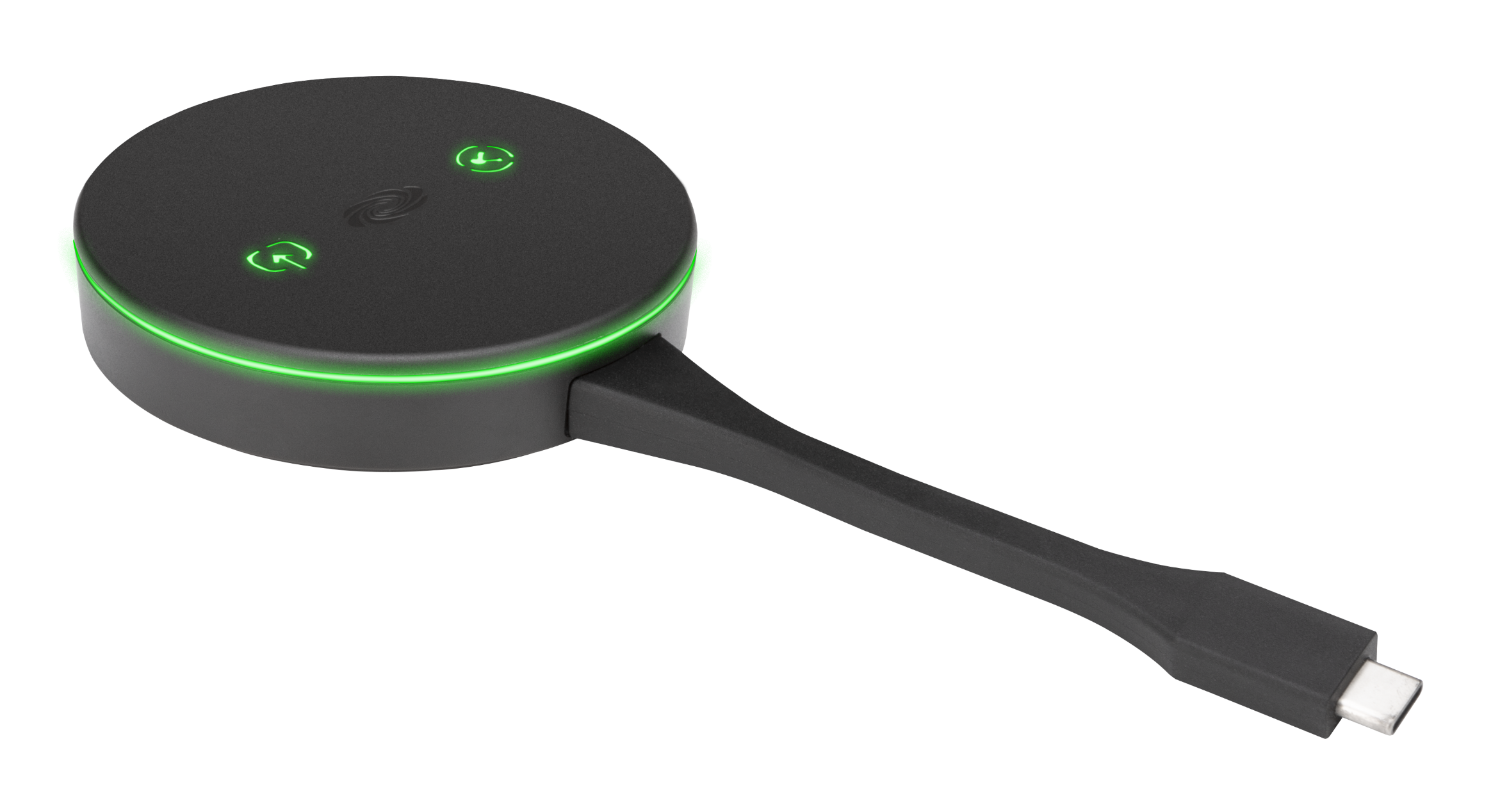
1Plug the dongle into your laptop.
2Press the screenshare button on the dongle.
3Your screen appears on the room display and is shared with the meeting automatically.
The AirMedia dongle
Option C: Join the meeting on your laptop

This option gives you the most control over what's shared, and is useful if you need to switch between applications.
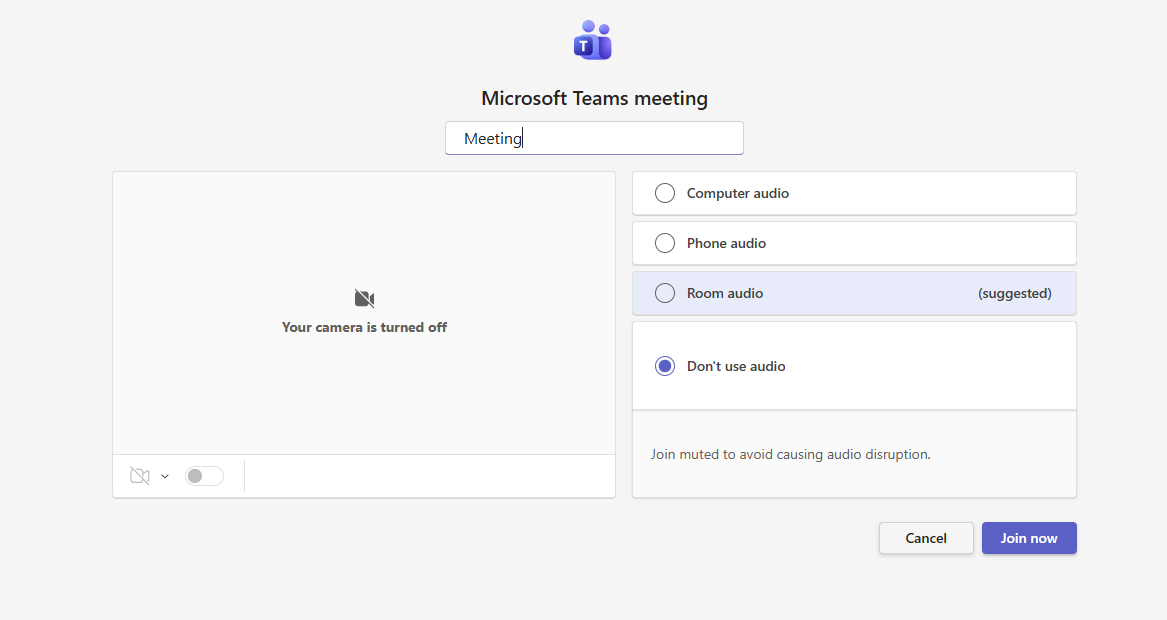
1On your laptop, join the same Teams meeting.
2When joining, choose Don't use audio. The room already provides audio, and joining with audio on causes echo.
3Share your screen in Teams as you normally would.
Choosing Don't use audio when joining from your laptop
Important: if you connected before the meeting started, tap Share

Your screen shares automatically when you connect during a meeting.

If you plugged in your HDMI cable or dongle before starting the meeting and left it connected, it will not share automatically. Your content stays on the room display, and remote attendees see nothing.

To fix this, tap Share on the console. Share is the up arrow icon in the control bar.

If someone on the call says they can't see your screen, this is almost always the reason.
The Share control on the console is the up arrow icon in the control bar
Finish up
1Tap Leave on the console.
2Unplug your HDMI cable or dongle.

Always leave the meeting rather than walking out, otherwise the next group arrives to find your call still running.

3. Present without a meeting
When to use this: You have no Teams meeting and simply want your laptop on the large display for people in the room.
What you need: The HDMI cable at the table, or the AirMedia dongle.

Nothing you show here is visible outside the room. If remote attendees need to see your screen, use Start a meeting and present in the room.

With the HDMI cable
1Plug the HDMI cable at the table into your laptop.
2Your screen appears on the room display automatically.

There's nothing to tap on the console. To stop, unplug the cable.

With the AirMedia dongle

Not every conference room has AirMedia. Your room has it if there's an AirMedia dongle sitting on the table. It looks like this:

The AirMedia dongle

If there's no dongle on the table, use the HDMI cable instead.

1Plug the dongle into your laptop.
2Press the screenshare button on the dongle.
3Your screen appears on the room display.

To pause or resume sharing, press the screenshare button twice quickly. To stop, unplug the dongle.

If your screen does not appear
On Windows, press Windows key + P and choose Duplicate.
On a Mac, open System Settings > Displays and choose to mirror the display.
Check that the room display is powered on.

Need help

 Call 801-863-1111 — please include the room number.

Troubleshooting


Most common cause: the meeting was joined from a personal laptop instead of the room console, so the room's mic, speakers, and camera aren't actually in the call. Join from the console calendar by tapping Join.

Tap what you see for a quick thing to try.

The touch panel is stuck, frozen, or keeps loading
!This one usually isn't user-fixable. Call AVSE and include the room number.

What's usually happening: the room computer behind the system isn't responding, so the touch panel can't connect.

Call 801-863-1111
People in Teams can't hear us, or we can't hear them
1On the touch console, make sure the room is not muted.
2Raise the room volume on the touch console.
3Make sure the room joined the meeting from the console calendar by tapping Join.
4If you also joined from your laptop, keep your laptop audio off to avoid echo.

Most common cause: the meeting was joined from a personal laptop, so the room mic and speakers aren't in the call.

Still stuck? Call & give your room number
My laptop isn't showing on the screen
1Plug in the room HDMI cable or AirMedia adapter firmly.
2Press Share on the touch console during the meeting.
3Using AirMedia? Press its screenshare button first, then press Share on the console.
4On a Mac / USB-C and still nothing? Try the room's other sharing option if there is one.

Most common cause: a loose cable or adapter, or sharing was started on the laptop but not on the console.

Still stuck? Call & give your room number
The room is on but won't switch inputs
!This one usually isn't user-fixable. Call AVSE and include the room number.

What's usually happening: the control system isn't communicating correctly with the room equipment.

Call 801-863-1111
The camera isn't working — remote people can't see us
1On the touch console, turn the camera off, then back on.
2Check whether the room shows a camera preview.
3Joined from your laptop too? Make sure you're not expecting the laptop camera instead of the room camera.

Most common cause: the camera lost connection to the room system, or was toggled off. No preview at all? That needs AV staff.

Still no preview? Call & give your room number

Good to know

 Everything is controlled from the touch console on the table.
 To join a scheduled meeting, find it on the console calendar and tap Join.
 To share in Teams, always press Share on the console so remote participants can see it.